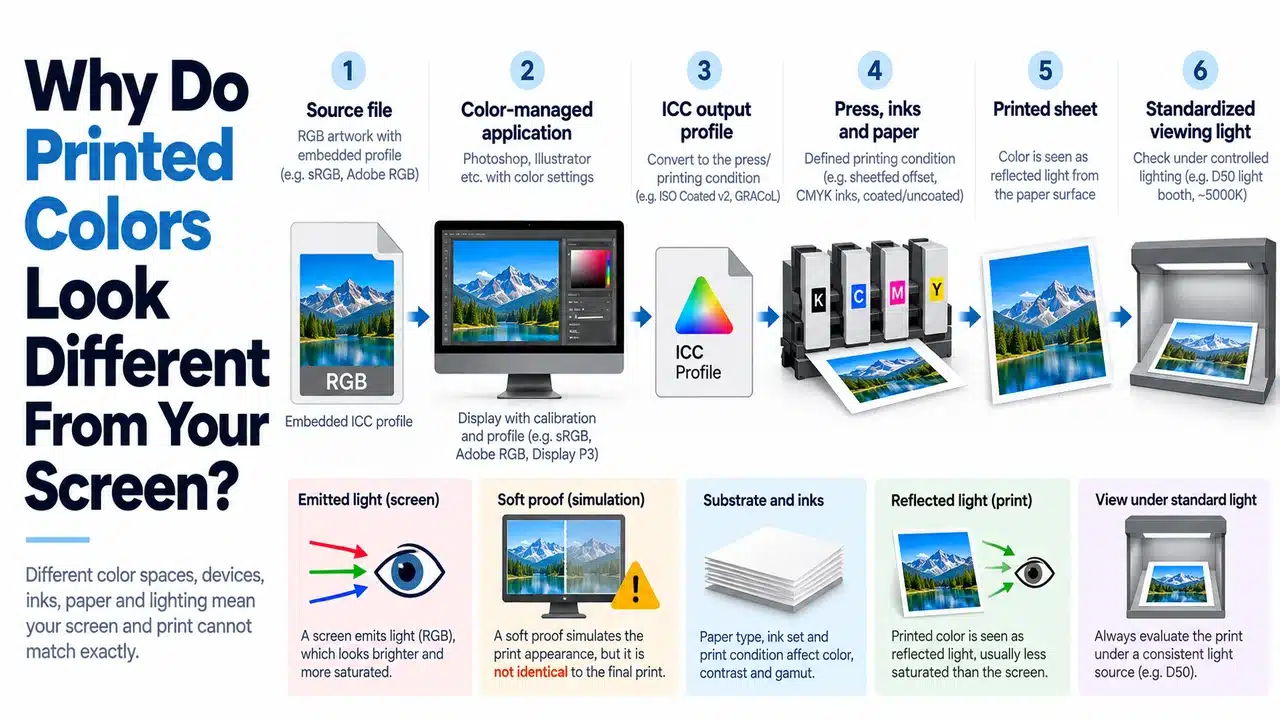
When a printed color differs from its screen preview, the difference alone does not establish a press defect. Diagnose the display, file, output condition, substrate and viewing light before changing artwork.
A screen and a printed sheet are different color-reproduction systems. A dependable match requires a known display profile, a defined printing condition, the correct paper, a color-managed soft proof and, when the color matters commercially, a physical proof that represents the intended production. No uncalibrated laptop, phone screenshot or generic PDF preview can guarantee that result.
The distinction matters on image-led projects such as custom art book printing, where color is part of the product rather than decoration. It also matters on a hardcover jacket, a catalog cover or any package where one brand color must remain recognizable across components.
Table of Contents
RGB and CMYK Are Encodings, Not Print Conditions
RGB and CMYK describe color encodings, not a promise that two devices will show or reproduce the same appearance. A display emits light. A printed page reflects the light falling on it. The display has its own gamut and white point; the press, ink, paper and finishing define another output condition. ICC’s display calibration guidance explains how display calibration and profiling support consistent color communication between devices.
An RGB color can therefore be outside the reproducible range of a particular CMYK printing condition. Conversion does not make that color printable; color management maps it into the output condition according to a rendering intent. Different output profiles can produce different conversions because they describe different combinations of process, substrate and print behavior. The ICC registry explicitly associates profiles with defined printing conditions and advises users to confirm that a profile suits the intended application (ICC Profile Registry).
The reverse oversimplification is also wrong: “CMYK always looks dull.” CMYK values viewed on a screen are still being rendered by a display. Whether a color prints acceptably depends on the actual profile, paper, ink system, press control and chosen conversion. A correct workflow predicts the intended print condition; it does not assume the four letters themselves ensure accuracy.
Five causes to check, in this order
| What changed | What it can explain | What to check |
|---|---|---|
| Display state | A bright, cool or saturated monitor makes an image appear unlike a reference print | Display profile, calibration, brightness setting and ambient light |
| File color data | Untagged or conflicting profiles can change how applications interpret the same numeric values | Embedded source profile, document profile and PDF output intent |
| Output condition | A generic or incorrect CMYK profile predicts the wrong press-and-paper combination | Ask the printer to name the target profile or characterization condition |
| Substrate and finish | Paper shade, coating, surface and laminate alter the reflected appearance | Approve on the intended stock and finished surface where relevant |
| Viewing light | A print changes appearance under different illumination; a monitor also responds to its surroundings | Compare print and display in an agreed, controlled viewing environment |
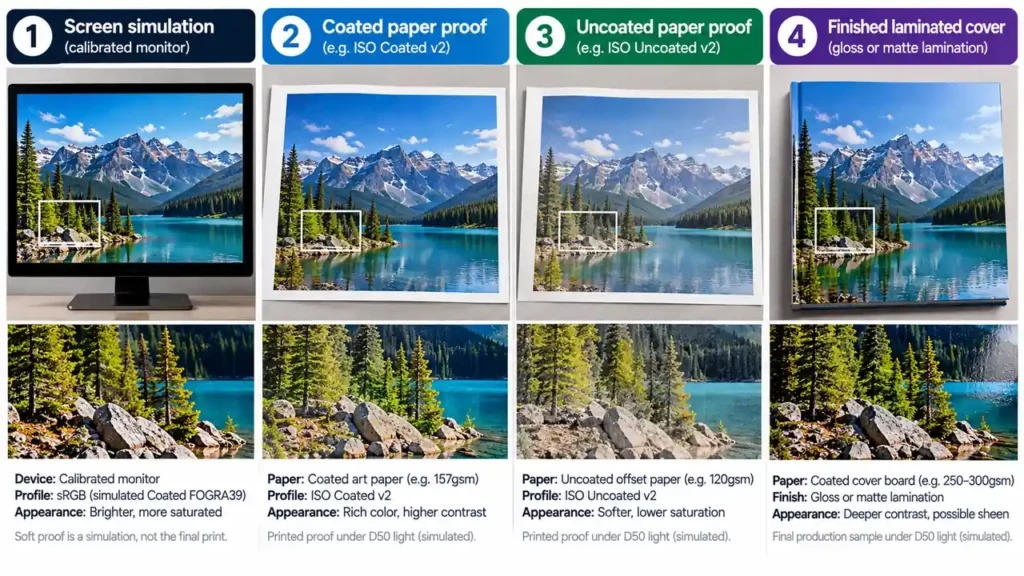
These causes can compound. For example, a bright display and a change from coated to uncoated stock can both affect perceived color, even if the supplied file is unchanged. PrintPack360’s coated-versus-uncoated paper guide explains the substrate side of that decision.
What soft proofing can—and cannot—tell you
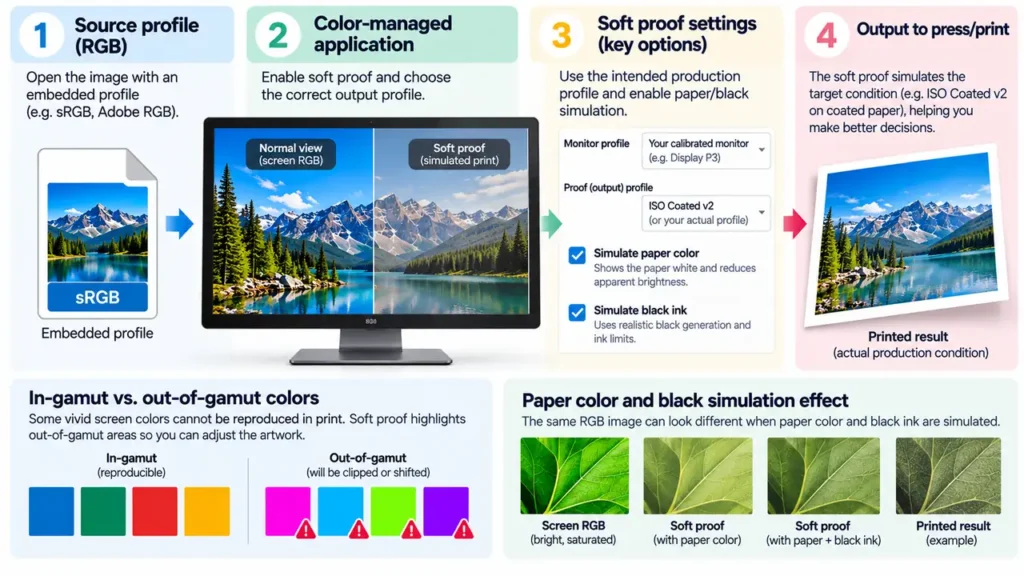
Soft proofing uses a color-managed application to simulate a specified output profile on a profiled display. It is useful because it can reveal likely out-of-gamut colors and show the tonal limits of a particular output condition before files are released. Adobe’s guidance describes selecting the profile for the device being simulated and includes options to simulate paper color and black ink (Adobe: Proofing colors in Photoshop).
Soft proofing addresses one part of the mismatch: it simulates a specified print condition on the profiled display. It is useful only when the display, application and output profile are appropriate to the job. ISO/TC 130’s guidelines for using print production standards also make the viewing environment part of soft-proof evaluation; an ordinary screen in uncontrolled room light is not the standardized scenario.
Use soft proofing to identify risk and make informed adjustments. Do not use it as evidence that production will match a random phone or a screen viewed at maximum brightness.
A production-ready color approval sequence
1. Lock the print condition before final color correction
Tell the printer the product, process, paper and finish. Ask which output profile or characterization condition should govern the supplied file. Do not download a familiar CMYK profile and assign it just because it is available. The ICC explains that profiles correspond to specific standard printing conditions and that suitability must be checked for the application (ICC Profile Registry).
If the paper, press or finishing route changes after approval, ask whether the proof remains representative. A proof for coated stock does not silently approve an uncoated production run.
2. Keep source profiles intact and convert deliberately
Retain embedded profiles in placed images. Confirm how the layout application handles RGB and CMYK objects, transparency and PDF export. If the printer requests a CMYK conversion, use the agreed destination profile and rendering intent. Do not both convert in the design application and allow an unknown downstream conversion to happen again.
For PDF delivery, confirm the intended output condition and export settings with prepress. A file extension alone does not identify the color condition; a PDF may contain mixed color spaces and may or may not carry an output intent. Adobe notes that an output intent describes the final destination device but does not itself convert the PDF’s color values (Adobe: Output intents in PDFs).
3. Soft-proof the colors that are most likely to move
Inspect saturated blues, violets, oranges, fluorescent-looking colors, deep shadows and delicate neutral grays. These are useful warning zones, not a claim that every color in those families will fail. Compare the normal document view with the simulated output profile. Where available, enable paper-white and black-ink simulation to understand how the substrate shade and printable dark range affect the image (Adobe soft-proof controls).
Do not “correct” the whole file to chase a brighter monitor. Make targeted adjustments only after reviewing the simulated condition and the visual intent.
4. Decide whether a screen simulation is enough
A screen simulation helps assess color relationships; it is not a physical approval sample. If exact color is commercially important, agree on a qualified hard proof for the defined print condition. ISO 12647-7:2016 specifies requirements for hard-copy digital proof systems intended to simulate a printing condition defined by characterization data, and ISO confirms this edition remains current (ISO 12647-7). An office print is not automatically equivalent.
For a book, the proof’s paper and finish must represent the production decision. A proof sheet cannot demonstrate binding, laminate or jacket construction that it does not include. If those affect the decision, request a representative printed-and-finished sample. PrintPack360’s sample strategy explains the approval scope of different sample types.
5. Judge the proof under agreed light and record the target
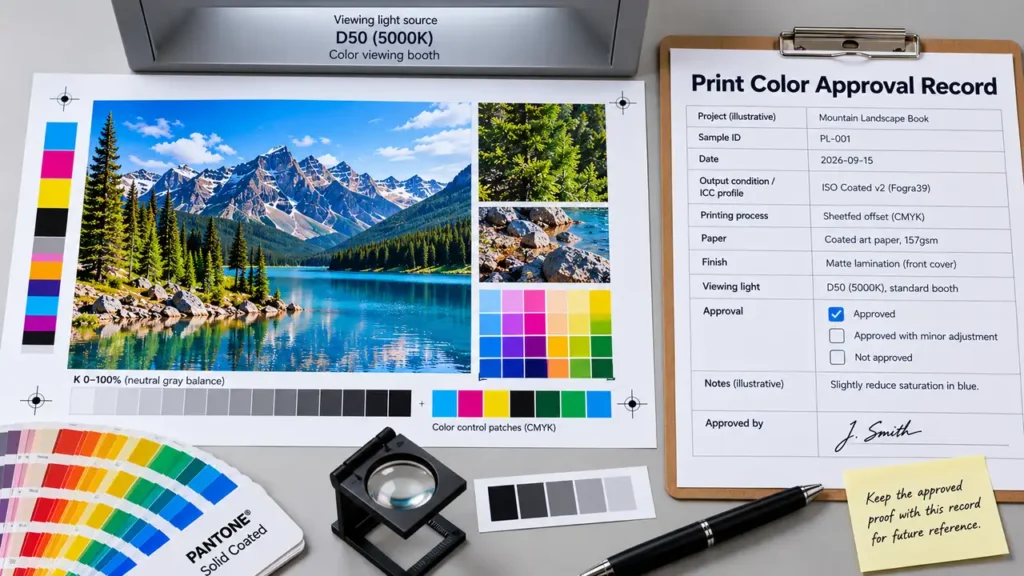
Compare the proof with its reference under consistent, suitable viewing light, not beside a window that changes throughout the day or under colored room lighting. Record the paper, profile or print condition, proof date, finish, approved sample identifier and any agreed brand-color target. If a later run is compared, use the same reference and conditions.
For a corporate spot color, a Pantone name alone does not make every substrate and process visually identical. Specify the intended reference and substrate, then agree how it will be evaluated. If a critical color cannot be reached with process inks under the chosen condition, discuss a spot ink or a revised design before production rather than expecting conversion to create an unavailable color.
Match the decision to the proof
| Project requirement | Minimum useful control | What it does not prove |
|---|---|---|
| General text-led book | Correct output condition and normal file preflight | Exact appearance on every reader’s screen |
| Image-heavy art book | Profile-based soft proof plus representative hard proof on the agreed paper | Final binding, laminate or every production sheet unless included in the sample |
| Brand-critical cover color | Named target, agreed substrate, controlled proof and written approval reference | Identical appearance under every light source or on every material |
| Multiple stocks in one book | Separate representative proofs for materially different stocks | That one stock’s proof approves another stock |
| Repeat edition | Retained approved sample and unchanged production specification | Match if paper, ink system, press condition or finish changes |
When the result looks wrong, diagnose before changing values
Ask these questions before editing the artwork:
- Is the approved proof itself outside the agreed target, or does only a phone or monitor disagree?
- Was the final paper and finish the same as the proof?
- Did the file carry the intended profile and output intent?
- Was the proof viewed under the agreed lighting?
- Is the difference global, limited to out-of-gamut hues, or concentrated in neutrals and shadows?
If the physical proof misses the agreed reference under controlled conditions, document the sample and the specific discrepancy, then ask prepress to inspect the output condition and production control. If the proof matches but a personal display does not, changing the production file to satisfy that display can make the print less accurate.
That distinction is the practical value of a proof: it turns “the color looks off” into a comparison against a defined condition and an approved reference. For broader process selection, see PrintPack360’s printing processes guide; for a print-ready hardcover file, use the hardcover cover-file setup guide.
FAQ
Why does the same file look different on my laptop and phone?
The two displays can have different profiles, white points, brightness, gamut and image-processing settings. A file’s embedded profile also affects color-managed applications. For print approval, use a profiled display and a print-specific soft proof, then rely on the agreed physical proof rather than choosing whichever consumer screen looks most pleasing.
Related public discussion: Graphic-design question about colors changing across screens.
If my artwork is already CMYK, why can the print still shift?
CMYK values are interpreted against a particular output condition. Different profiles, paper, ink behavior and finishing can produce different appearances from the same nominal values. Confirm the intended destination profile and proof on the production stock; “CMYK” by itself is not a complete print specification.
Should I change the file until it looks like the print on my phone?
No. A phone is not a controlled proofing device, and its display may be brightened or color-adjusted. First determine whether the approved proof misses the agreed print target. If it does, ask the printer to investigate the proof or production condition; do not compensate the master artwork for one uncontrolled display.
Why did my blue become dull when it was printed?
The chosen blue may be outside the reproducible gamut of the specified process-and-paper condition, or it may have been converted using a different profile than expected. Soft-proof the file using the printer’s destination profile, inspect the conversion, and request a representative proof. If the brand color remains critical, ask whether a spot ink or a different substrate is appropriate.
Related public discussion: Print-production question about a blue shifting in print.